A simple walkthrough of the key features on the FloNotes dashboard.
Watch the video below for a quick tour of the dashboard, or scroll down for a step-by-step breakdown.
Here is a breakdown of the FloNotes dashboard.
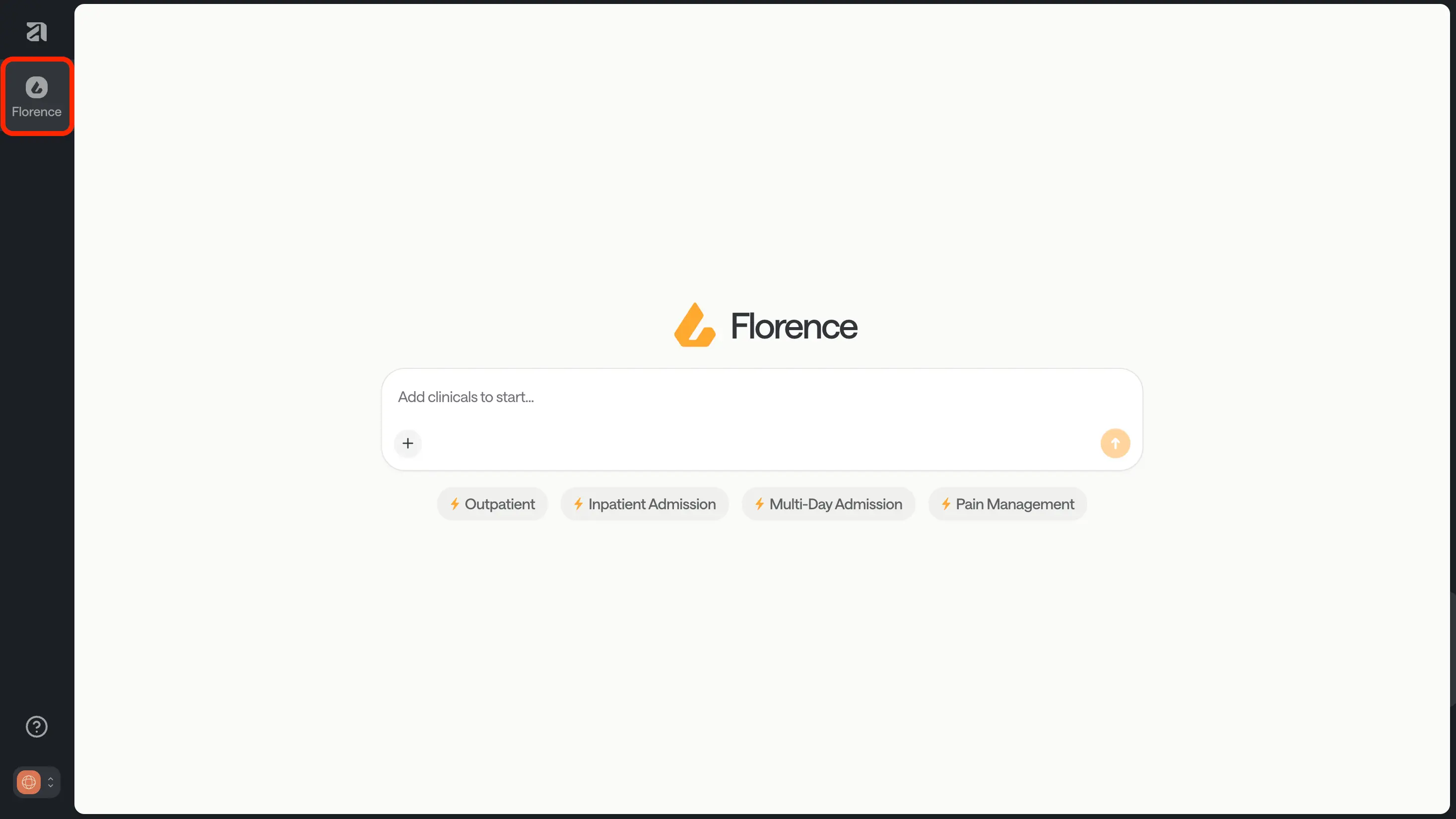
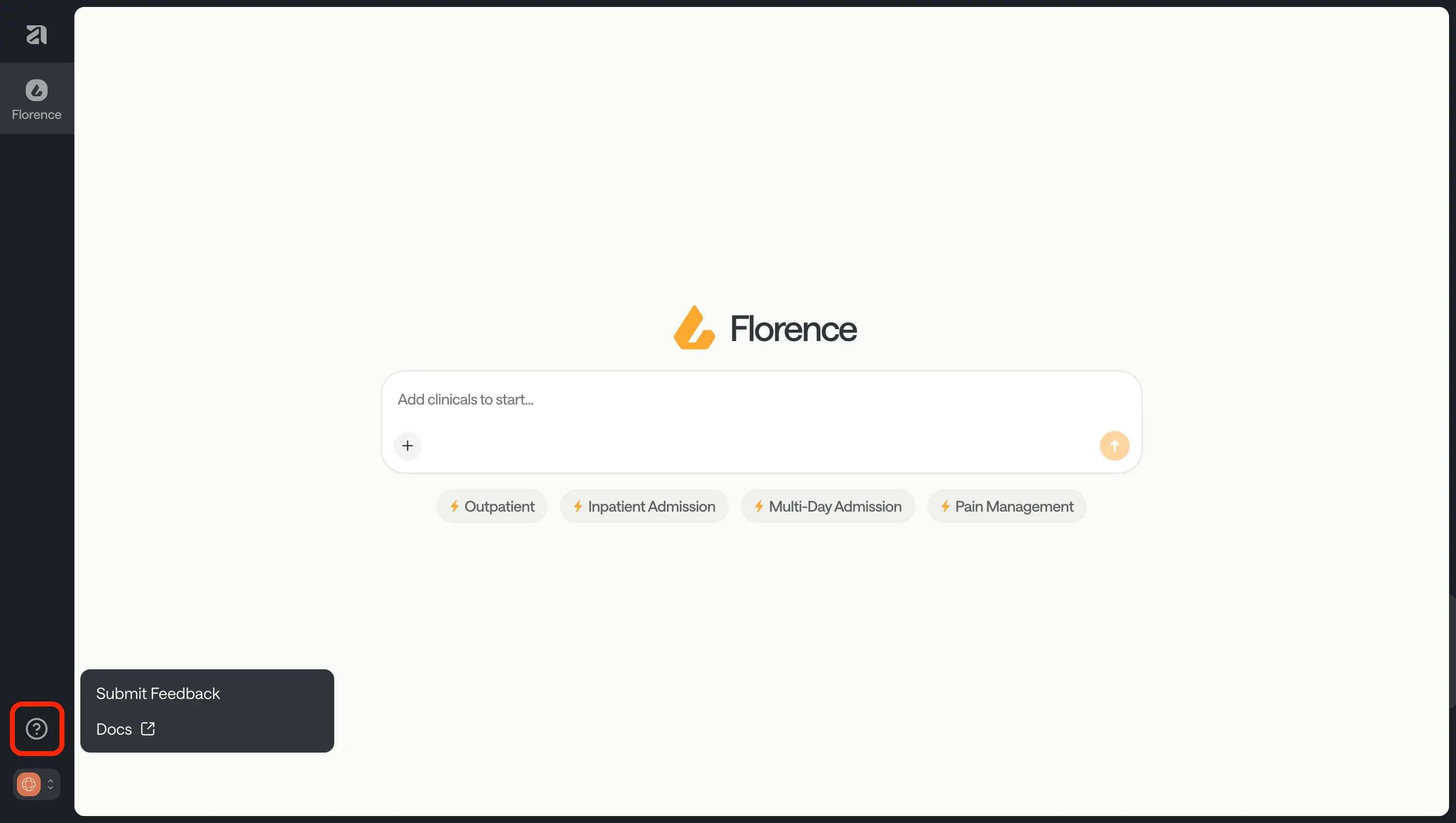
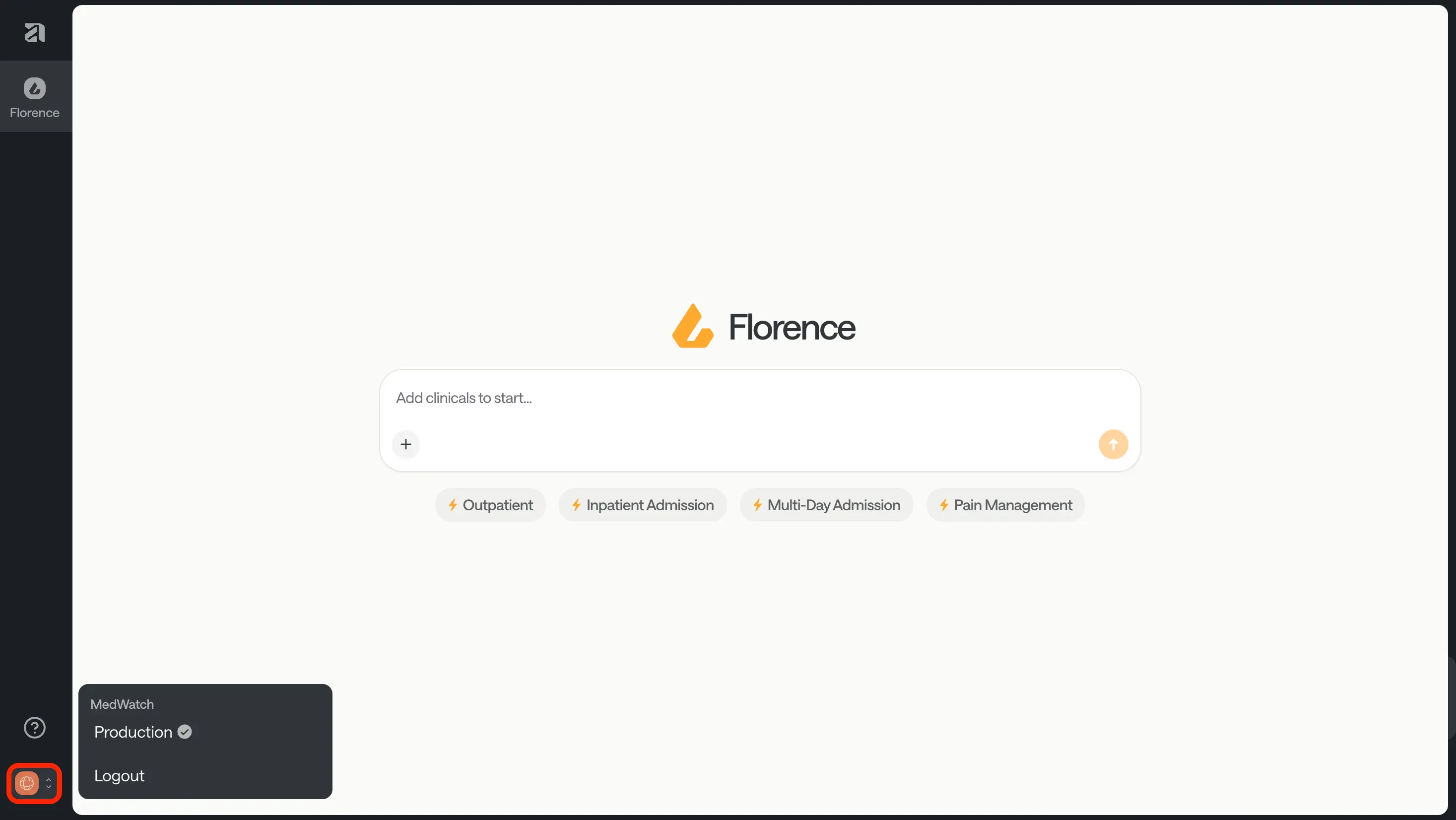
On the left is the sidebar, containing the Home button, Help Center and Logout button.
The Home button will take you to the FloNotes dashboard - you can use this when you want to end a session, and return to the homepage.
The Help Center button opens a small menu where you can:
Submit Feedback — Tell us if something isn’t working or share ideas.
Docs — Open the onboarding documentation webpage (password protected).
The Workspace button opens a menu when pressed, showing you are in the MedWatch Production platform. From here, you have the option to Logout.
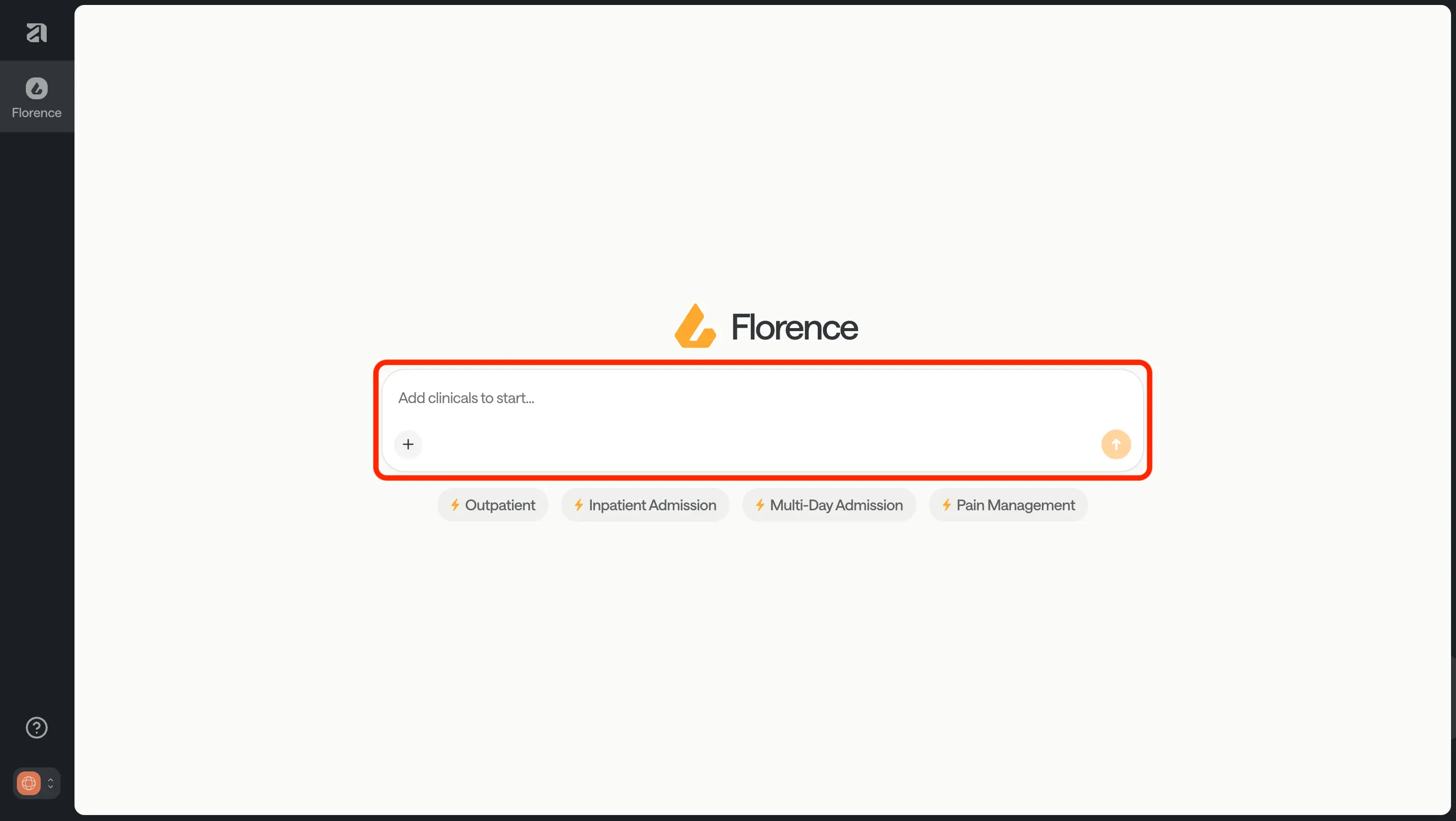
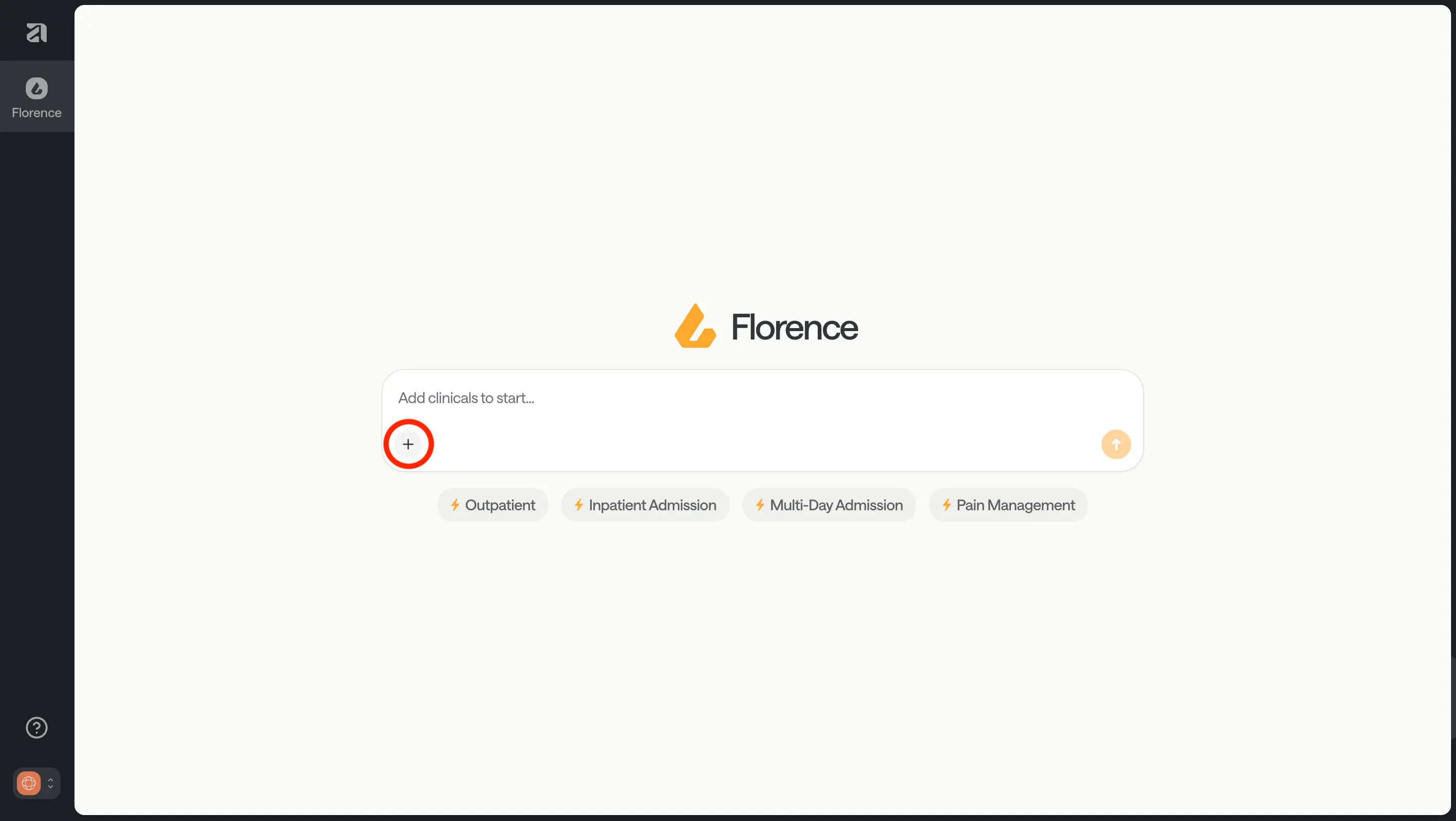
Front and center is the chatbox to ask Florence (FloNotes) to do tasks. (Hint: See the article Your First Session for an easy guide to getting started with FloNotes!)
The plus (+) sign is where you can upload your clinical documents.
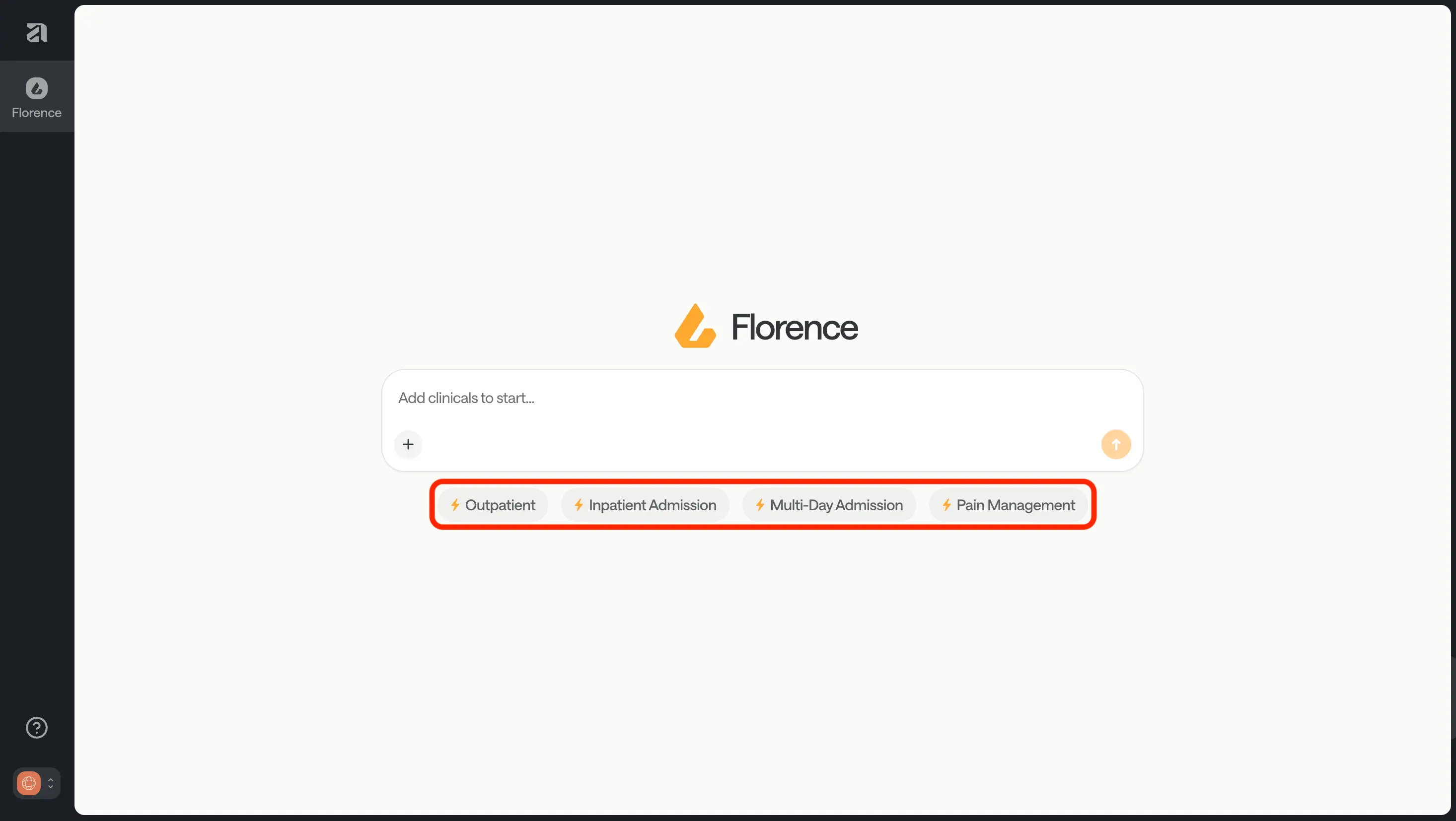
Underneath the chatbox are Templates, which you can use to quickly generate a pre-set template for your clinical review. (Hint: See the article Use Templates for a walkthrough of how to use them.)