A quick guide to logging in, logging out, and resetting your password.
Watch the video below for an overview of how to login, logout and reset password, or scroll down for a step-by-step breakdown
Logging In
Navigate to the MedWatch login page, using the link: https://anterior.app/auth/login.html2. You should have received an email with your username and password - use this to log in.
You should have received an email with your username and password - use this to log in.
Then we’ll ask for a 6-digit one-time code, sent to your inbox for extra security. Input this and click verify.
You’re in! Welcome to the FloNotes Dashboard!
If you don't receive the email within a few minutes, please check your spam folder. If you continue experiencing issues, please email us at medwatch@anterior.com.
How to Log out
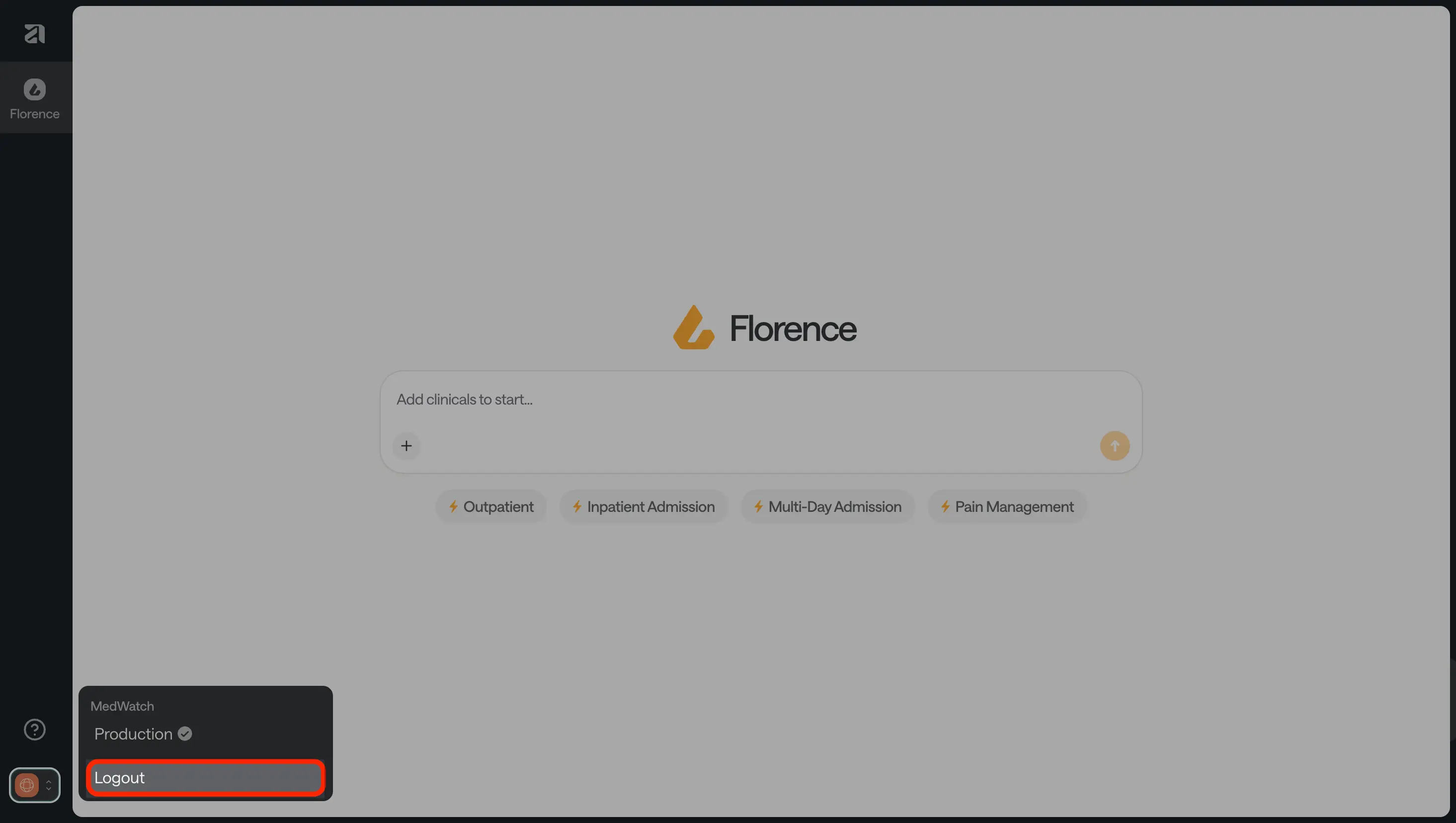
Navigate to the globe icon on the lower left side of your Dashboard, within the side bar. This is the Workspace button.
Click on the icon which will open up a small menu, then select “Logout”.
I forgot my password. How do I reset it?
Click on the link “Forgot your password?” on the sign in page.
Input your email address and press submit.
You will be sent an email containing a password reset link. Click on this link.
You should be redirected to the Reset Password page. Type your new password, and confirm it, then press submit.
You will then be instructed to sign in with your email address and new password.
If you don't receive the email within a few minutes, please check your spam folder. If you continue experiencing issues, please visit our Help Center.



.webp)
