An easy guide to getting started with FloNotes - upload clinical documents, start a session, and ask FloNotes to help find the information you need.
Watch the video below for an overview of how to start a session, or scroll down for a step-by-step breakdown.
Here is a breakdown of how to start a session:
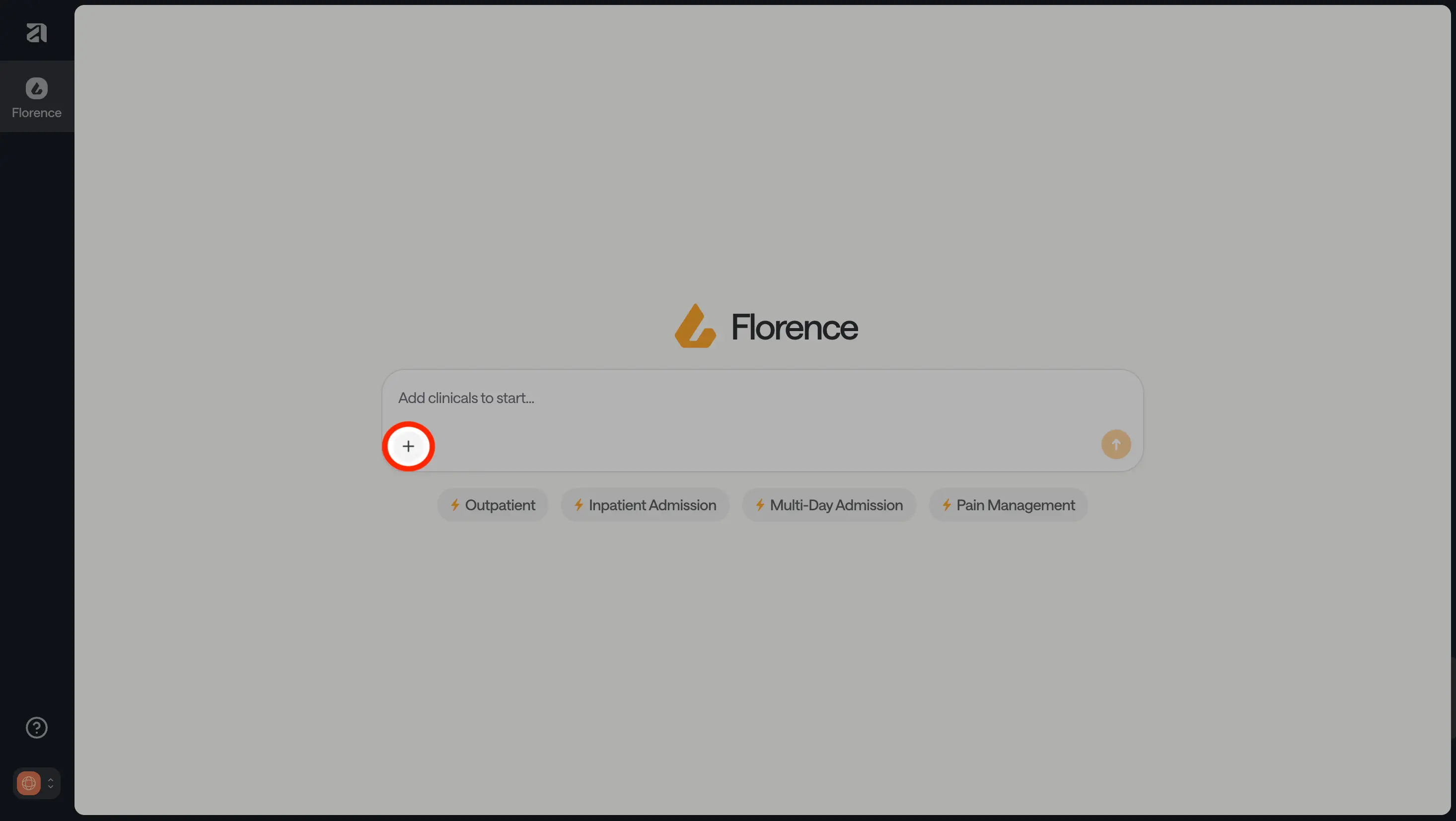
From the Dashboard, click on the plus icon at the bottom of the FloNotes chat window.
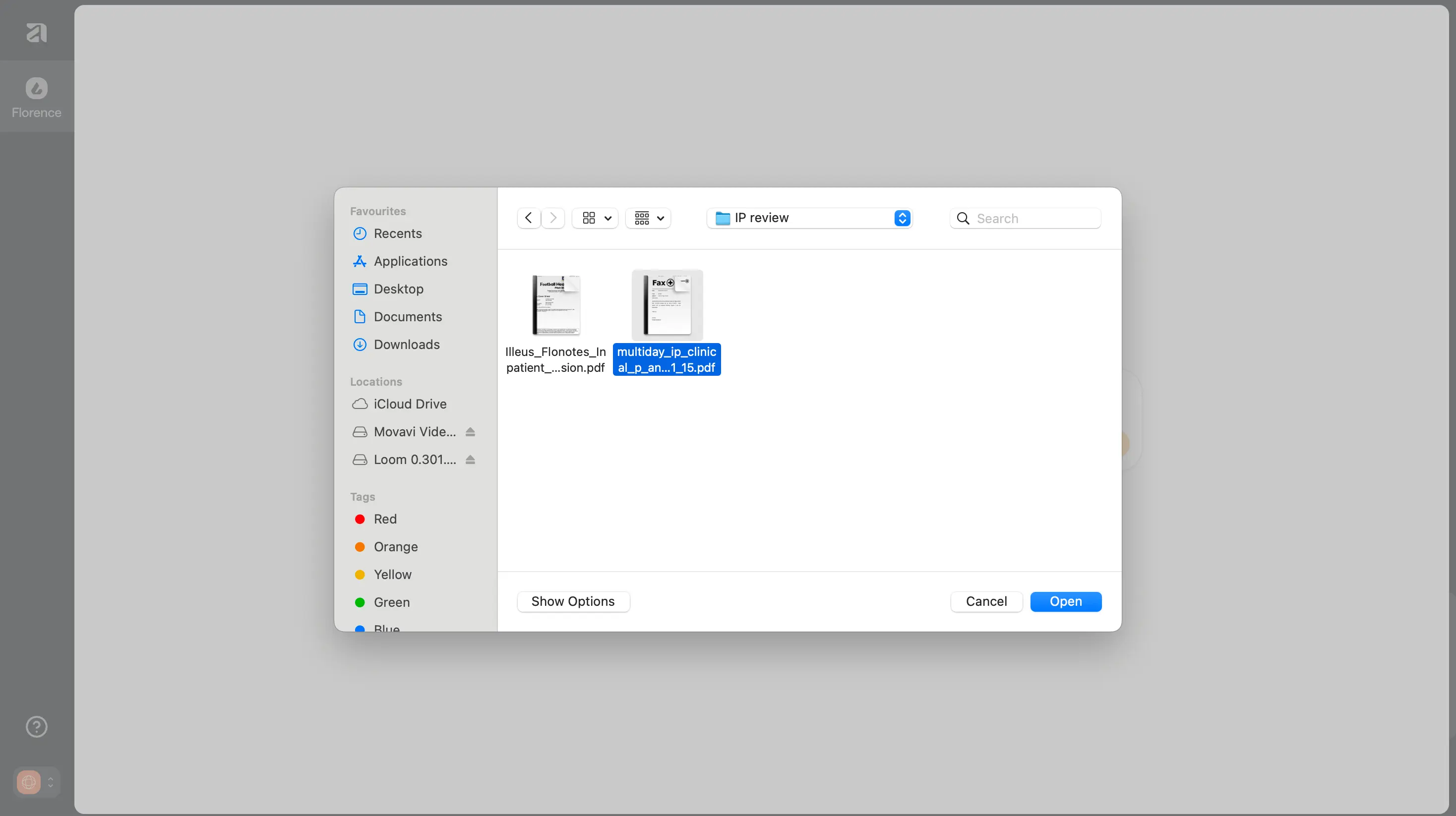
This will open up your files. Select the documents you wish to upload for your review.
You can select more than one document to upload by holding Shift key and selecting your documents.
Please upload documents in PDF format only.
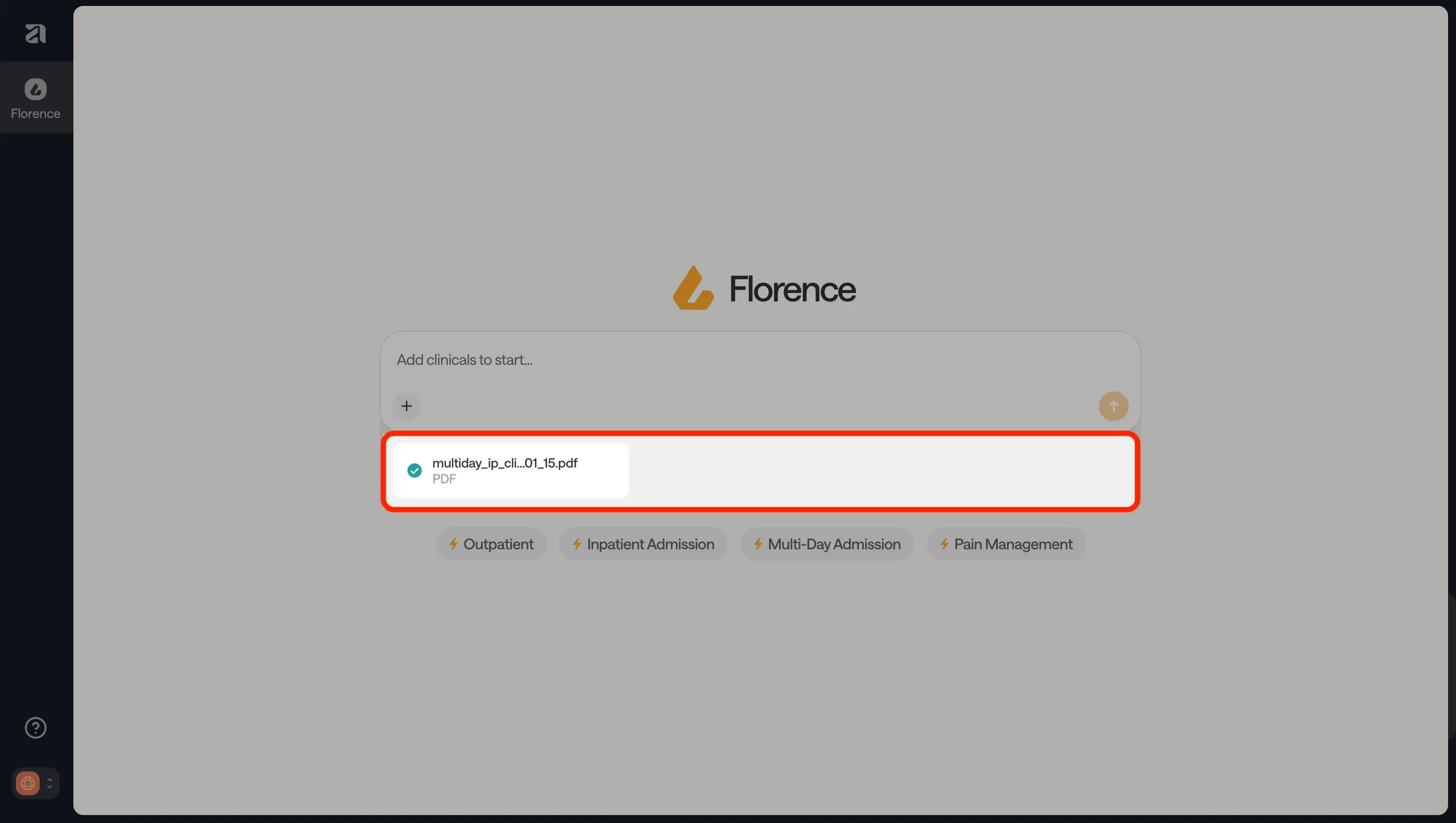
Your uploaded documents will appear at the bottom of the chat window. (Note: If you uploaded the wrong document, refresh the page and repeat Step 2 for the correct documents.)
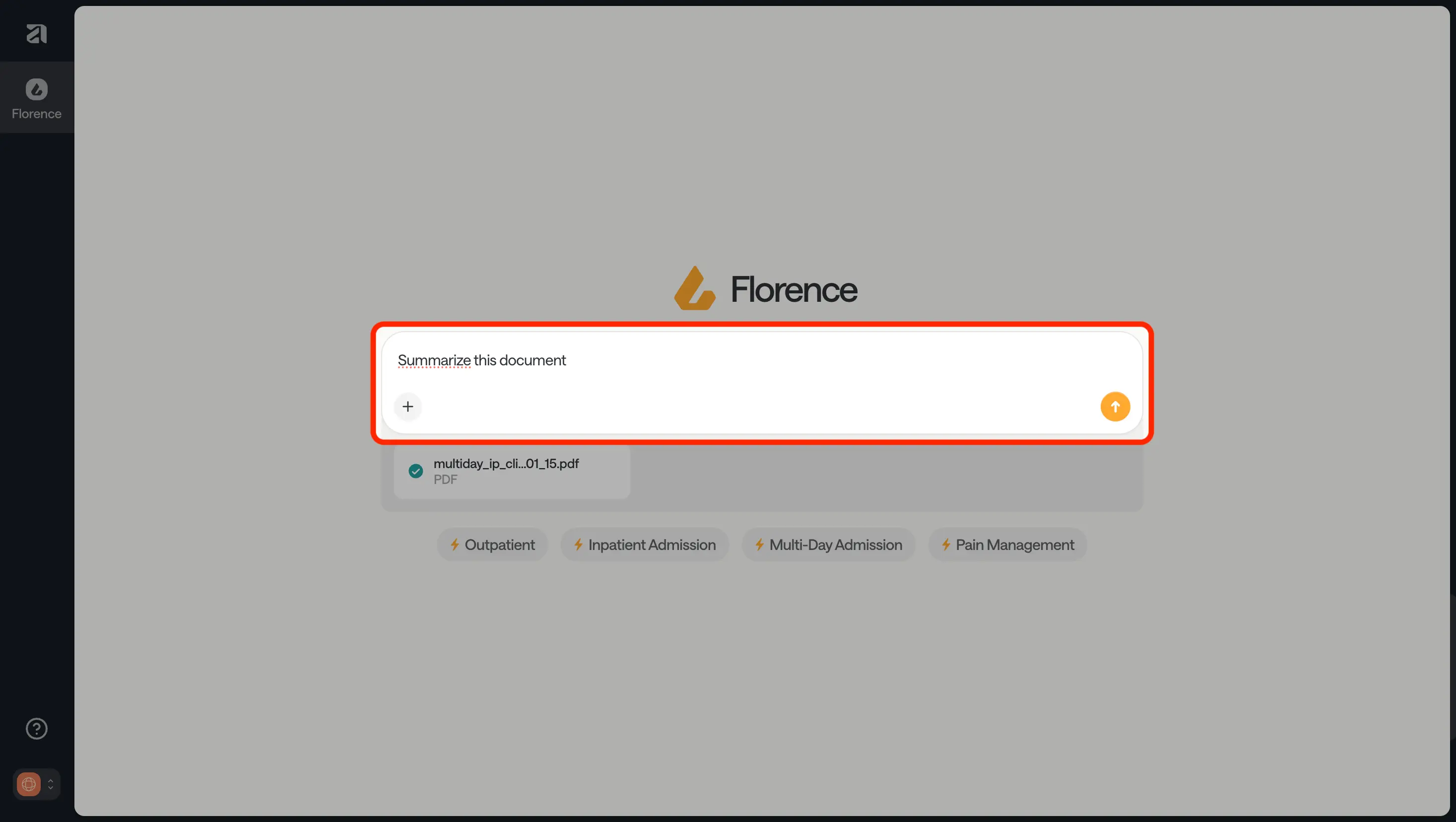
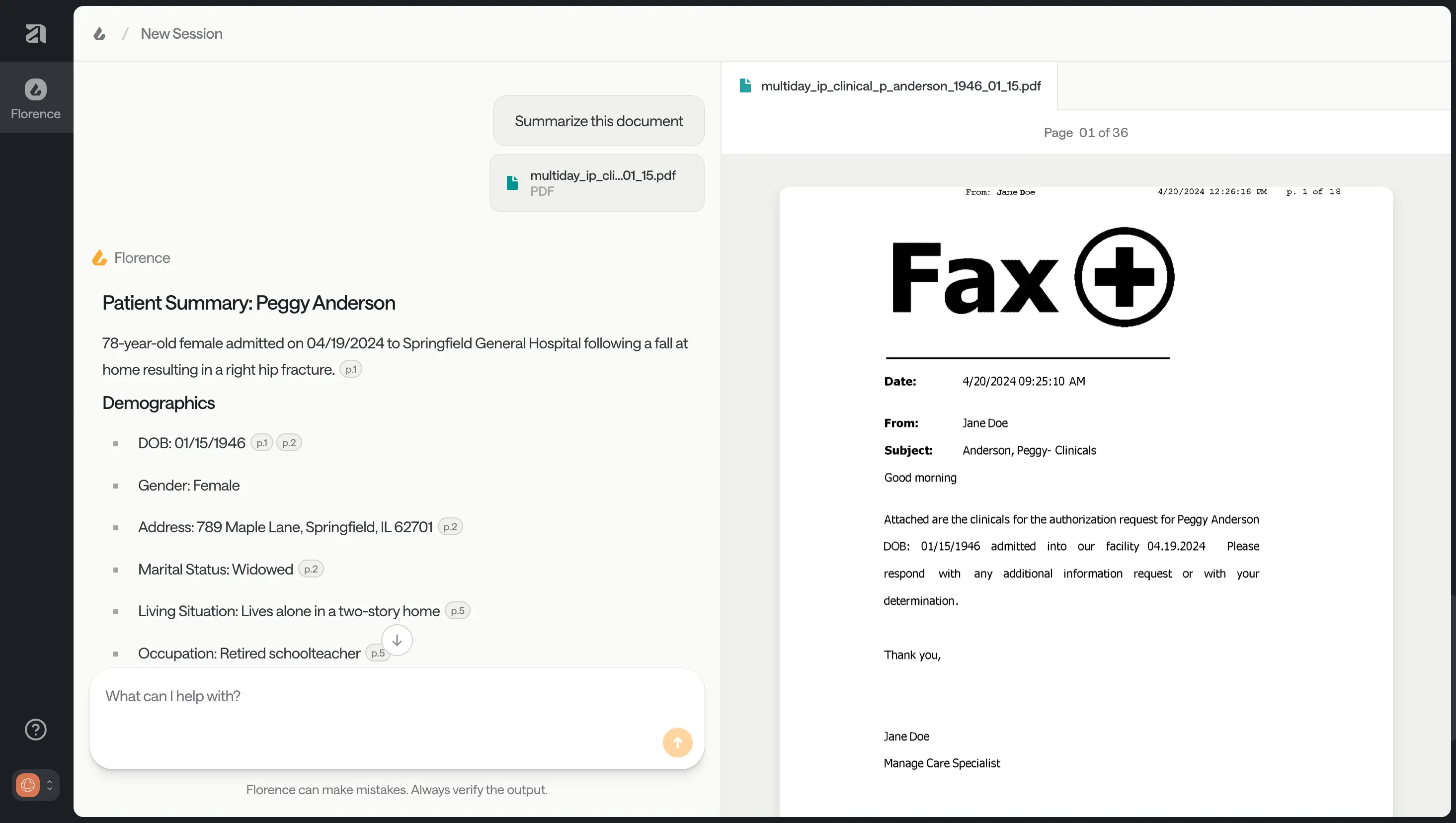
Type what task you want Florence (FloNotes) to do into the chatbox. For example, you could ask “what conservative management has this patient had?” or “summarize these clinicals”.
Florence (FloNotes) will process your task against your documents and generate a response. You can check where Florence has found the information by clicking on the citation in its answer. This will take you to the part of the document where the information was extracted from.
You can keep asking Florence questions or to complete tasks, and use the responses to help complete your review. You can copy information into your internal system by highlighting it, and using Command+C (Mac) or Control+C (Windows) to copy, and Command+V or Control+V to paste.